Contents
Overview Requirements Pre-installation check Installation Several machines on the same PC Setup wizard Machine connection Energy meter Shifts ERP and MES integration Users and activity log License Network and security Antivirus and firewall Data and backup Service and icon Updates and version 1 Troubleshooting SupportOverview
RTIndustry 2.0 is a single Windows service installed on a PC connected to the machine over the network. The service reads data from the control (CNC or PLC), processes it and stores it in its database; the interface is used from the browser, on the same PC or from any PC, tablet or phone on the company network.
| Component | What it does |
|---|---|
RTIndustry service | Starts with Windows and collects data even with the browser closed. Restarts by itself in case of error. |
| Web interface | Port 1880: Work orders, Machine HMI, Telemetry, OEE, Reports, Energy, Alarms, WO history, Settings, Operators and activity log. |
| Built-in database | Work orders, shift history, alarms, settings and activity log. No separate database needs to be installed. |
| Built-in MQTT broker | Port 1883: outgoing telemetry and work order commands from authenticated external systems. |
| Notification area icon | Color-coded service and license status, opening the dashboard, restarting the service, log. |
| User manual | Included in the program (“? Help” button on every screen) and available online. |
Requirements
| Item | Requirement |
|---|---|
| Operating system | Windows 10 version 1809 or later, Windows 11, Windows Server 2019 or later. 64-bit only. |
| Memory | At least 4 GB recommended (the service uses about 100 MB; the rest is for Windows and the browser). With several machines on the same PC allow about 100 MB more for each instance; from 6 machines upwards 8 GB are recommended (test with 8 active instances: about 60 MB each when idle). |
| Disk | At least 2 GB free; 10 GB recommended to keep years of history and the backups. |
| Network to the machine | Ethernet connection to the CNC or PLC (see ports by protocol). |
| Local ports | 1880 (web interface and API) and 1883 (MQTT), opened in the Windows firewall by the installer. Each additional instance uses the next pair: 1890/1893, 1900/1903… If the antivirus has its own firewall see Antivirus and firewall. |
| Internet | For license verification, also through a company proxy. Without a connection the program keeps working. |
| Power | The PC must not go to sleep: while the PC is asleep no data is collected. |
| Browser | An up-to-date browser (Chrome, Edge, Firefox, Safari) on a PC, tablet or phone. |
| Installation | A Windows administrator account is required. |
Pre-installation check
The Verifica-RTIndustry.bat tool is copied to a USB stick and run on the customer's PC before installing. It changes nothing: it only reads and creates a report on the Desktop (green = ready, yellow = warnings to assess, red = to be fixed first).
It checks the Windows version, memory and disk, permissions, ports 1880 and 1883, network adapters, PC sleep, third-party antivirus and firewalls, existing installations and instances, proxy, reachability of the license service, time and time zone, and reachability of the machine (ping and protocol port). After installation the same tool is found in C:\RTIndustry\strumenti.
Installation
- Run the RTIndustry installer with an administrator account. The default folder is
C:\RTIndustry. - The installer creates the
RTIndustryWindows service with automatic start and automatic restart on error, opens ports 1880 and 1883 in the firewall and protects the data folder. - When it finishes, the browser opens on the setup wizard.
| Folder | Contents | On updates |
|---|---|---|
app\, node\, tray\ | Program, runtime and notification area icon | Replaced |
config\ | Startup configuration (port, data folder) | Never overwritten |
data\ | Database, backups, logs, installation identity | Never touched |
strumenti\ | PC, network and machine check tool | Replaced |
Several machines on the same PC
Each RTIndustry installation follows one machine. To monitor several machines from a single PC or server (for example 8 machines in a department) you install several instances, one per machine, all running together.
- Install RTIndustry the first time: this is the main instance (
C:\RTIndustry, port 1880). - Run the installer again: choose Install a new instance and give it a name (letters, digits and hyphens, for example
Mill2orLATHE-01). - Complete the setup wizard of the new instance at the suggested address (for example
http://PC-NAME-OR-IP:1890) with the machine to connect and the same license key.
| Main instance | “Mill2” instance | |
|---|---|---|
| Folder | C:\RTIndustry | C:\RTIndustry-Mill2 |
| Windows service | RTIndustry | RTIndustry-Mill2 |
| Ports (dashboard / MQTT) | 1880 / 1883 | first free ones: 1890 / 1893, then 1900 / 1903… |
| Icon, data, backups, license | separate for each instance | |
The instance name appears next to the logo, on the sign-in page and in the browser tab title. To update, run the installer and choose which instance to update; uninstalling one does not affect the others. Silent installation: RTIndustry-Setup-x.y.z.exe /VERYSILENT /ISTANZA=Mill2.
Setup wizard
It appears only the first time, right after installation. If the browser is closed halfway through, reopening it resumes from the step that had been reached.
- Company: company name (required), plant, department, machine name and time zone (for Italy
Europe/Rome; daylight saving time is automatic). - Machine: connection type (OPC UA, FANUC, Heidenhain, Modbus TCP or Simulator for test data), address and Test the connection. The green “Machine connected” box confirms that state and parts are coming in. If the machine is off you can go ahead and try again later from Settings.
- Shifts: start and end times of each shift, including shifts across midnight.
- License: key in the format
XXXX-XXXX-XXXX-XXXXand Activate license. Without a key a 30-day free trial starts. Any company proxy is entered under Advanced options. - Administrator: username and password (at least 8 characters) of the first administrator.
- Start: summary and Start RTIndustry.
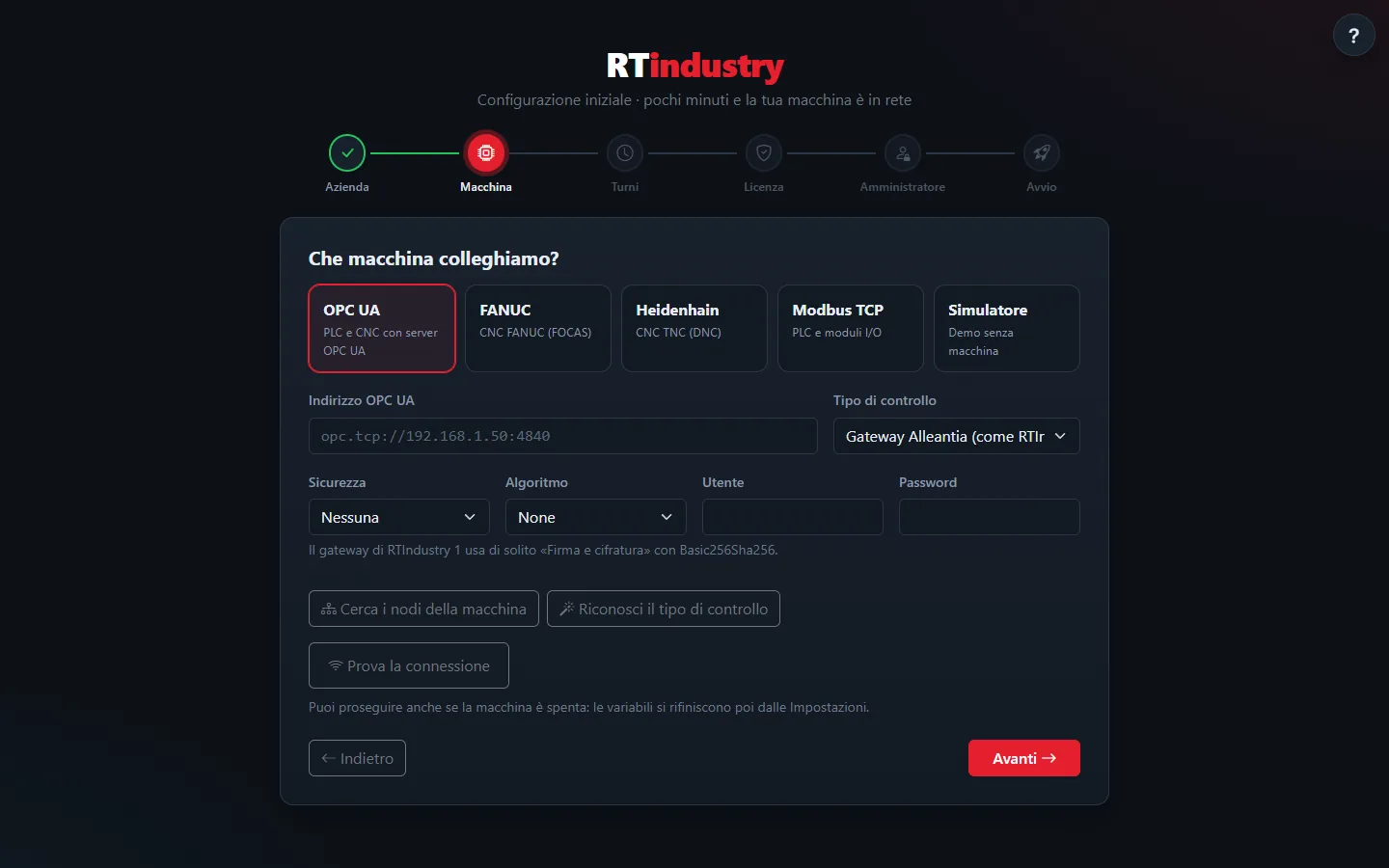
Machine connection
The connection is chosen in the setup wizard and changed in Settings › Machine and protocol. When the protocol is changed, the previous configuration stays saved. With Test the changes before saving a new address or protocol is checked without touching the one in use.
| Protocol | Machines | Notes |
|---|---|---|
| OPC UA | PLCs and CNCs with an OPC UA server | Address opc.tcp://IP:port (often 4840). Ready-made profiles for Siemens SINUMERIK 840D sl (native acProg nodes, verified in the field, or progStatus), umati machines (OPC 40501) and gateways already used with version 1. Security: none, sign, sign and encrypt (Basic256Sha256, Aes128_Sha256_RsaOaep, Aes256_Sha256_RsaPss), with username and password. Buttons to browse the machine's nodes and to detect the type of control. |
| FANUC FOCAS | FANUC CNCs with built-in Ethernet | CNC port 8193. Series: 0i-D / 0i-F, 30i / 31i / 32i / 35i, 16i / 18i / 21i, 15 / 15i. The series determines how states are read. |
| Heidenhain DNC | TNC 640, TNC 6xx, TNC 320, TNC 128, iTNC 530, CNC PILOT 6xx, MANUALplus 620, MillPlus IT | DNC port of the control. If the control has no part counter, parts are counted at program end (M30, M2/M02 or END PGM); alternatively a counter is read from a PLC data path (with access password). Programs are sent to the control from Settings › Folders and transfers. |
| Modbus TCP | PLCs and I/O modules | IP address, port (usually 502) and Unit ID. Ready-made map or custom registers: holding (FC3), input (FC4), coil (FC1), discrete inputs (FC2); 16- and 32-bit types, float and strings, with configurable byte order and a Test button for each register. |
| Simulator | No machine | Realistic data for demos and tests in the office. |
Variables, states and part counter
RTIndustry reads up to 11 variables from each machine: state, operating mode, part counter, program, alarm state and message, feed rate, spindle and rapid override, tool, energy counter. They are usually suggested automatically by the protocol profile; they can be changed in Settings › Machine variables.
In State and mode mapping · part counter you set how the machine's values are translated into RTIndustry states (Running, Paused, Stopped, In alarm, Idle…) and how parts are counted. Counting is protected against resets and jumps of the machine's counter, even after a PC restart.
If the machine has no part counter (often Heidenhain, or SINUMERIK with actParts not configured) you enable counting at program end: each direct transition from Running to Program end counts as one part; a reset after a stop (program aborted) does not count. Since the machine is read at intervals (normally every 5 seconds), a whole cycle shorter than the interval is not seen: when the measured cycles are shorter than three readings, Settings shows the Short cycles warning and it is better to use the machine part counter or a PLC counter.
The option With the alarm active the machine is “In alarm” makes the machine go In alarm when the alarm variable is active (including an alarm number other than 0, shown as “Alarm N”).
If no data arrives for more than 15 seconds the machine shows “Off or unreachable”.
Energy meter
Besides the counter read from the machine, a separate Modbus TCP energy meter can be connected (Settings › Energy meter), with a test reading in Wh and kWh. For the IME CE4DT MID (Conto D4) there is a ready-made profile (input register 20592, unit ID 5, factor 100): only the IP address is needed. For other models you set register, function (FC3/FC4), data type (uint32, int32, float32, uint64), register order (ABCD, CDAB, BADC, DCBA) and scale factor: the value multiplied by the factor must come out in Wh (meter in kWh → 1000; in 0.1 kWh → 100). Correcting the factor does not create energy jumps in the work orders. The energy price in euros per kWh, used for the cost of the shift and of periods, is set in Settings › Services, energy and license.
Shifts
Shifts are defined by number, start time and end time, including shifts across midnight. The shift change uses the configured time zone (not the PC clock): at the start of each shift the shift counters are reset, while work orders keep their totals. OEE and reports can be read by shift.
ERP and MES integration
External systems create, edit, start and delete work orders and read their progress through the REST API, a database exchange table (compatible with version 1) or MQTT. The channels are enabled in Settings › Work order integration. All the details, with examples, are in the integration guide.
Users and activity log
| Role | What they can do |
|---|---|
| Operator | Work orders, HMI, telemetry, OEE, reports, energy, alarms, history. Cannot see Settings. |
| Administrator | Everything, plus Settings, license and Operators and activity log. Created in the setup wizard. |
The administrator creates operator accounts in Operators and activity log (username, full name, initial password of at least 8 characters) and can edit, deactivate or delete them: a deactivated account is signed out immediately. Each user changes their own password from My password.
The activity log lists every operation performed in the interface: sign-ins (including rejected ones), sign-outs, creation, editing, moving, status changes, scrap and deletion of work orders, account management, saving of settings. It can be filtered by period, user and activity and exported to CSV (up to 1000 entries, date and time in UTC). It cannot be edited or deleted from the interface.
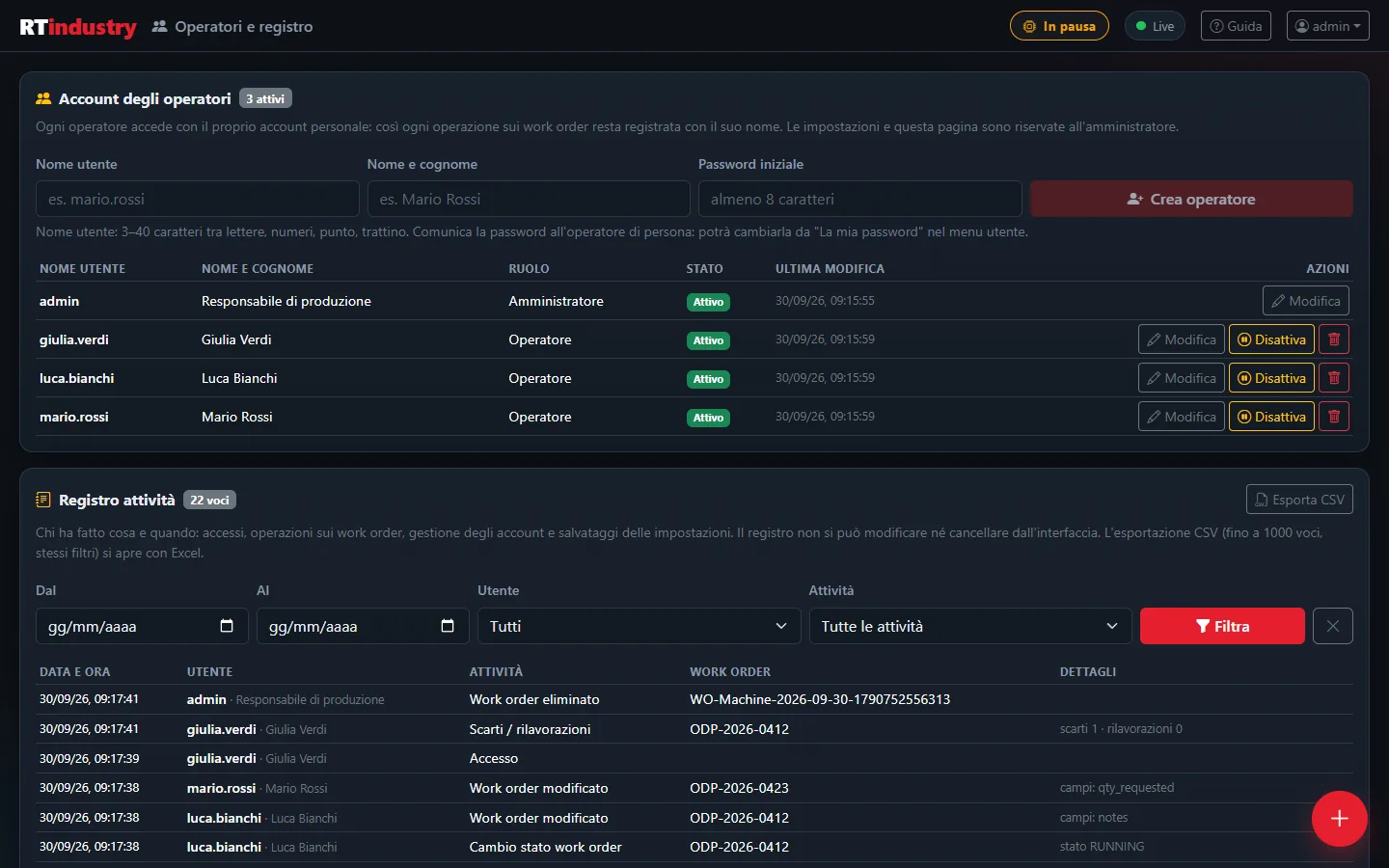
License
The license is activated with the key (XXXX-XXXX-XXXX-XXXX) in the setup wizard or in Settings › Services, energy and license, and is verified over the internet with the license service. Without a key a 30-day free trial starts.
- If the connection is missing, RTIndustry keeps working normally and retries by itself.
- If the company reaches the internet through a proxy, its address and any username and password are entered.
- An expired license puts the interface in read-only mode: data can be viewed but not changed. It must be renewed within 30 days.
- Each key has a number of seats: every installation or instance takes one. For several machines a single key is usually used, with as many seats as there are machines. Deactivate license frees the seat for another PC, but stops data collection on the current one until it is reactivated.
The license messages and what to do about them are explained in the manual.
Network and security
- Sign-in with personal accounts; passwords stored in hashed form, never in clear text.
- Session signed with a key generated on the PC at first start, protection of write operations against external requests.
- Ports: 1880 (interface and REST API) and 1883 (MQTT). HTTPS is enabled by installing a certificate on the PC.
- ERP API with a key generated by the administrator and shown only once: RTIndustry keeps only its fingerprint.
- MQTT: telemetry can be read, but work order commands are accepted only from authenticated clients.
- Passwords for the machine, the proxy and external databases stored encrypted on the PC.
- The diagnostics file for support contains no passwords.
Antivirus and firewall
With Windows' own antivirus (Defender) alone, the installer configures everything by itself. Many third-party antivirus programs, especially paid or trial versions (Avast, AVG, Kaspersky, ESET, Bitdefender, Norton…), install instead their own firewall that replaces the Windows one: the rules created by the installer no longer apply and shop-floor tablets and PCs cannot reach the dashboard, even though it opens normally on the RTIndustry PC. Some wrongly flag the RTIndustryTray.exe icon (a false positive for a new program).
- Add the
C:\RTIndustryfolder and those of the instances (C:\RTIndustry-…) to the antivirus exceptions. - In the antivirus firewall allow incoming connections to
C:\RTIndustry\node\node.exe(one per instance), or set the shop-floor network as private or trusted. - If the icon has ended up in quarantine, restore it and restart the PC: data collection (the service) continues anyway.
- Always test access from a tablet. The check tool reports the presence of a third-party firewall.
Data and backup
- Data is kept in the
C:\RTIndustry\datafolder, accessible only to Windows administrators. - Automatic daily backup of the database in
data\backups: the last 7 days and 4 Sundays are kept. A secondary copy can be set (for example on another drive) and a backup can be run manually from Settings › Services, energy and license. - At startup the database is checked; if it turns out to be damaged it is restored from the last valid backup. A safety copy is made before every database update.
- The operating logs are in
data\logs, with automatic rotation.
Service and notification area icon
Next to the Windows clock there is the RTIndustry icon:
- Green: service running and license valid.
- Yellow: configuration to be completed or a warning (for example license about to expire).
- Red: service stopped or license not active.
With a right-click: installed version, service and license status, Open dashboard, Settings, Stop/Restart service, Show log. Windows users can stop and restart the service from the icon without administrator rights.
Updates and moving from version 1
An update is installed over the previous version: configuration and data stay where they are, and database updates are applied at startup, after a safety copy.
Users of RTIndustry 1 can move to 2.0 keeping the history (work orders, shifts, alarms), the machine configuration, the users and the same license. The migration is carried out by the technician on the PC that will host the new version. ERP integrations based on the writewo/readwo tables keep working (see exchange table).
Troubleshooting
The machine shows “Off or unreachable”
- Check that the machine is switched on and the network cable is connected.
- In Settings press Test connection: the message tells you what is wrong (address, port, credentials).
- Run
C:\RTIndustry\strumenti\Verifica-RTIndustry.batto check the network and the protocol port.
The part count does not increase
- Check that there is a work order In progress and that the machine is Running.
- In Settings › State and mode mapping · part counter check the part counter variable.
- If the machine's part counter stays at 0, enable counting at program end; with Heidenhain check that the program ends with M30, M2 or END PGM.
The page does not open
- Look at the notification area icon: if it is red, right-click › Restart service.
- From another PC use the address
http://PC-NAME-OR-IP:1880(additional instances: 1890, 1900…) and check that the firewall is not blocking the port.
The dashboard opens on the PC but not on the tablets
- It is almost always the antivirus firewall: see Antivirus and firewall.
“Short cycles” warning in Settings
- With counting at program end some parts may be missed: use the machine part counter or a PLC counter (see Variables, states and part counter).
Consumption looks 10, 100 or 1000 times wrong
- The energy meter scale factor is not right: the value must come out in Wh (see Energy meter). Compare the test reading with the meter's display.
Error codes
| Code | Meaning and solution |
|---|---|
RTI-E001 | The program does not start on this PC (folder copied from another PC, PC name changed or Windows reinstalled). Reinstall RTIndustry: the data is kept. |
RTI-E011 | Port 1880 is taken by another program (for example the previous version). Close the other program or change the port. |
RTI-E020 / E021 | Database problem. Contact support: automatic daily backups exist. |
RTI-E030 | Installation identity cannot be read: the license must be reactivated. |
Support
For questions or problems contact the technician or reseller who installed RTIndustry, or write to assistenza@rtindustry.it. Attach the diagnostics file (Settings › Export diagnostics) or, if the program does not open, the report of the check tool.
For a demo or sales information: demo@rtindustry.it.